Data Visualization

Dr. Mine Dogucu

Data Visualization

Examples

How Common Is Your Birthday?

One Dataset Visualized 25 Ways

Mandatory Paid Vacation

Why are K-pop groups so big?

We will only touch the surface of data visualization in this class. Visualization is a rich field on its own, in case some of you would consider it as a career option.

Data Visualizations

  • are graphical representations of data

  • use different colors, shapes, and the coordinate system to summarize data

  • can tell a story or can be useful for exploring data

Packages for Today

library(hellodatascience)
library(tidyverse)

Data Context

data(atus_college)
glimpse(atus_college)
Rows: 312
Columns: 13
$ employment        <fct> Part Time, Full Time, Part Time, Part Time, NA, Part…
$ age               <dbl> 19, 23, 22, 21, 26, 25, 27, 36, 30, 20, 18, 20, 25, …
$ enrollment        <fct> Part Time, Full Time, Full Time, Full Time, Full Tim…
$ weekly_earnings   <dbl> 400.00, 1476.92, 561.25, 100.00, NA, 300.00, 1076.92…
$ household_size    <dbl> 6, 2, 2, 4, 2, 3, 3, 1, 3, 2, 4, 4, 2, 2, 4, 5, 4, 2…
$ time_alone        <dbl> 326, 150, 357, 22, 0, 455, 90, 340, 326, 120, 285, 5…
$ sleep_time        <dbl> 680, 180, 470, 660, 875, 765, 630, 300, 445, 630, 66…
$ work_time         <dbl> 315, 0, 0, 0, 0, 0, 0, 645, 555, 0, 0, 0, 520, 615, …
$ degree_class_time <dbl> 0, 0, 238, 0, 0, 0, 0, 0, 0, 0, 0, 228, 0, 0, 0, 0, …
$ shopping_time     <dbl> 14, 0, 0, 0, 0, 0, 0, 5, 20, 345, 0, 0, 0, 0, 0, 0, …
$ lunch_break_time  <dbl> 66, 60, 20, 115, 35, 50, 25, 30, 75, 60, 15, 15, 60,…
$ sports_time       <dbl> 0, 60, 0, 30, 0, 0, 0, 0, 0, 0, 0, 0, 0, 15, 0, 0, 0…
$ religious_time    <dbl> 0, 0, 0, 0, 0, 0, 0, 0, 0, 0, 0, 0, 5, 0, 0, 0, 0, 0…

Documentation for Data

?atus_college

Visualizing a Single Variable

Visualizing a ___ Variable

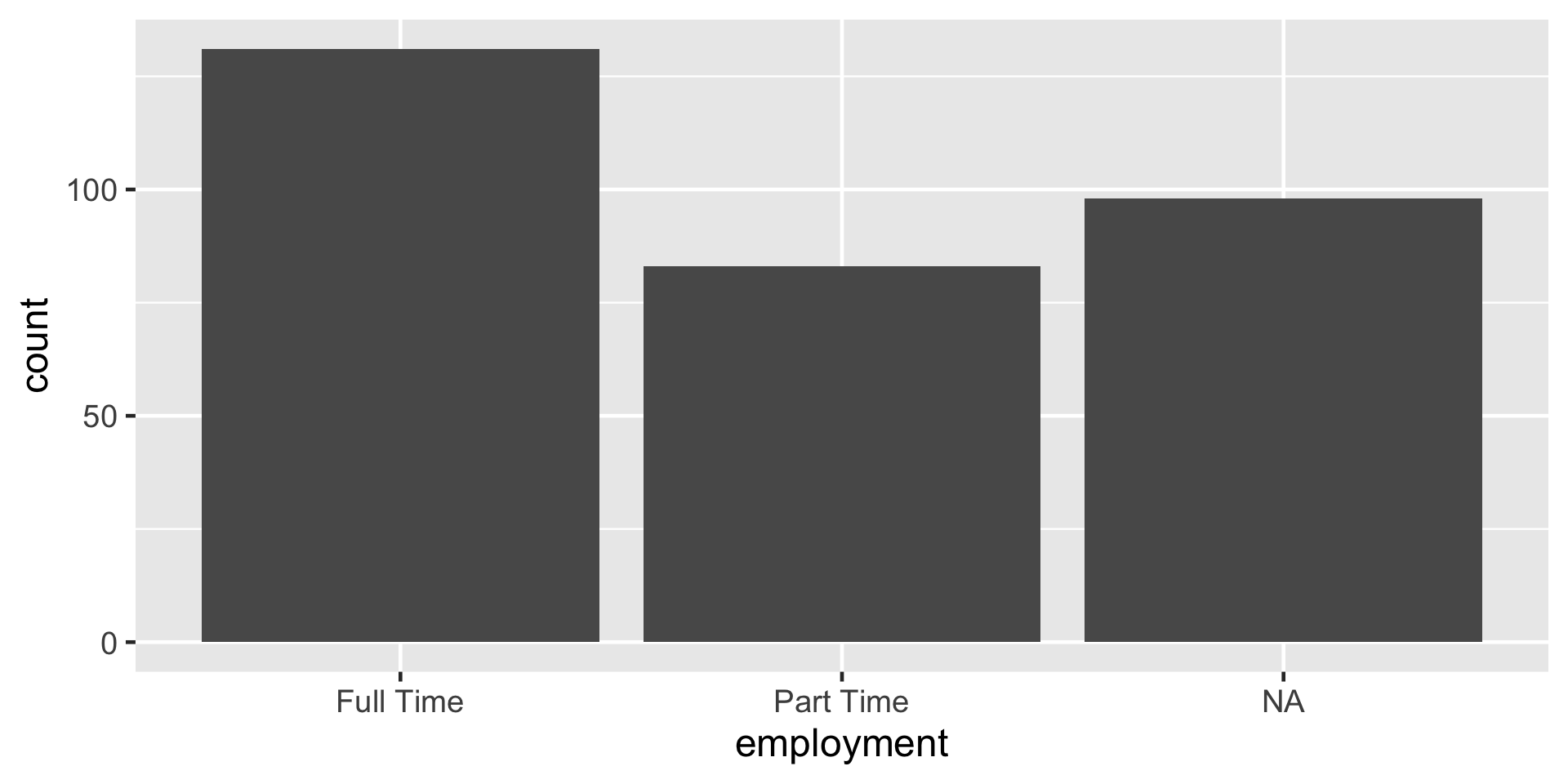
A bar plot of employment status. The x-axis is labeled 'employment status' with categories Full Time, Part Time, and NA. The y-axis is labeled 'count' and ranges from 0 to 140. Full Time has the tallest bar at about 130, Part Time is around 80, and NA is close to 100.

Figure 1: A bar plot of employment status

  1. What do you notice about this graph?
  2. If you could talk in English to R, how would you tell R to make this plot?

Pick your data

ggplot(data = atus_college)

A blank rectangular space

Figure 2: Blank coordinate system

Map your variable

ggplot(data = atus_college, aes(x = employment))
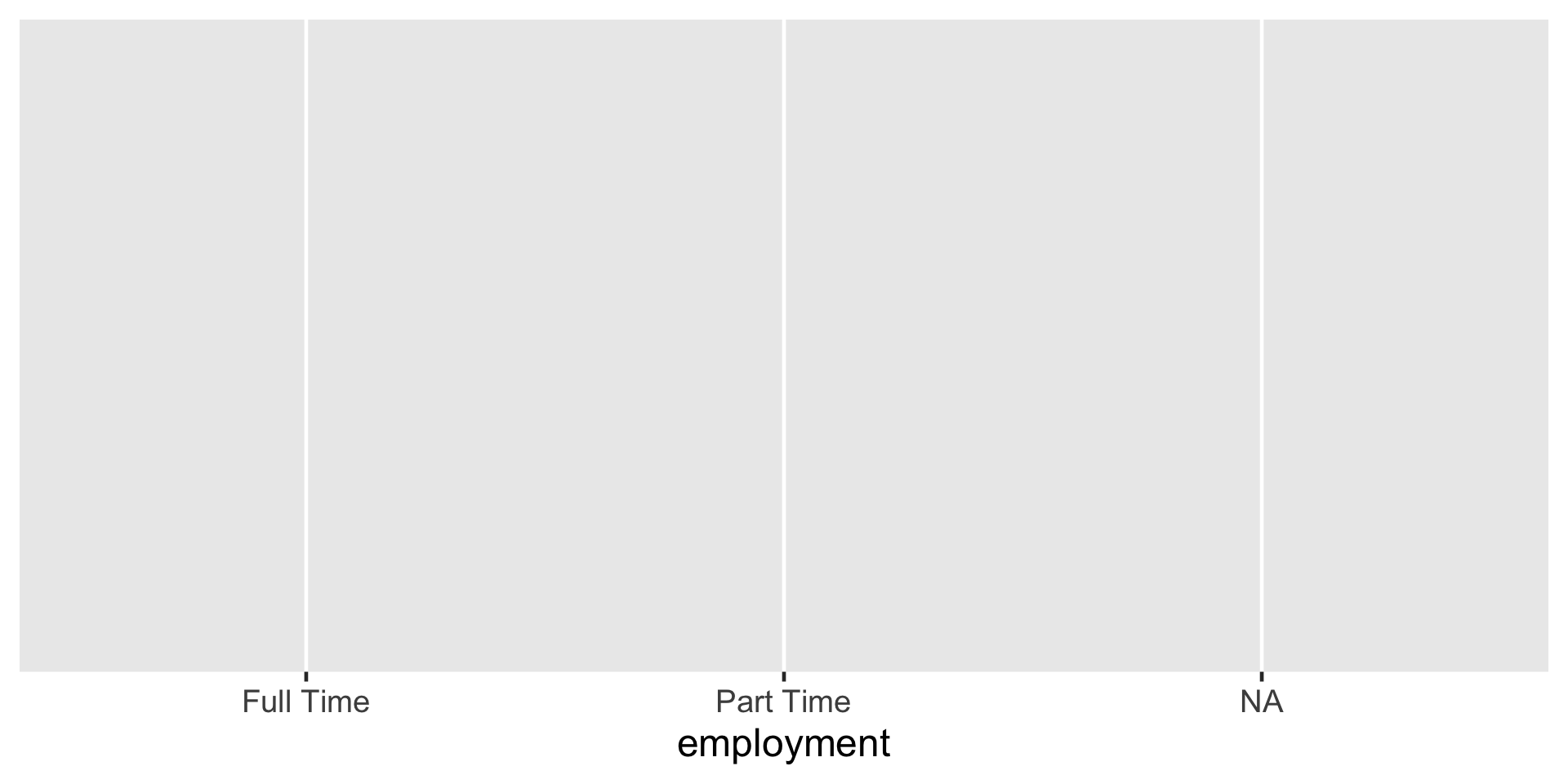
A blank rectangular space with only the x axis labeled emplyment with three categories Full Time, Part Time, and NA

Figure 3: Mapping employment variable to the x-axis

Pick your plot type

ggplot(data = atus_college, aes(x = employment)) +
  geom_bar()
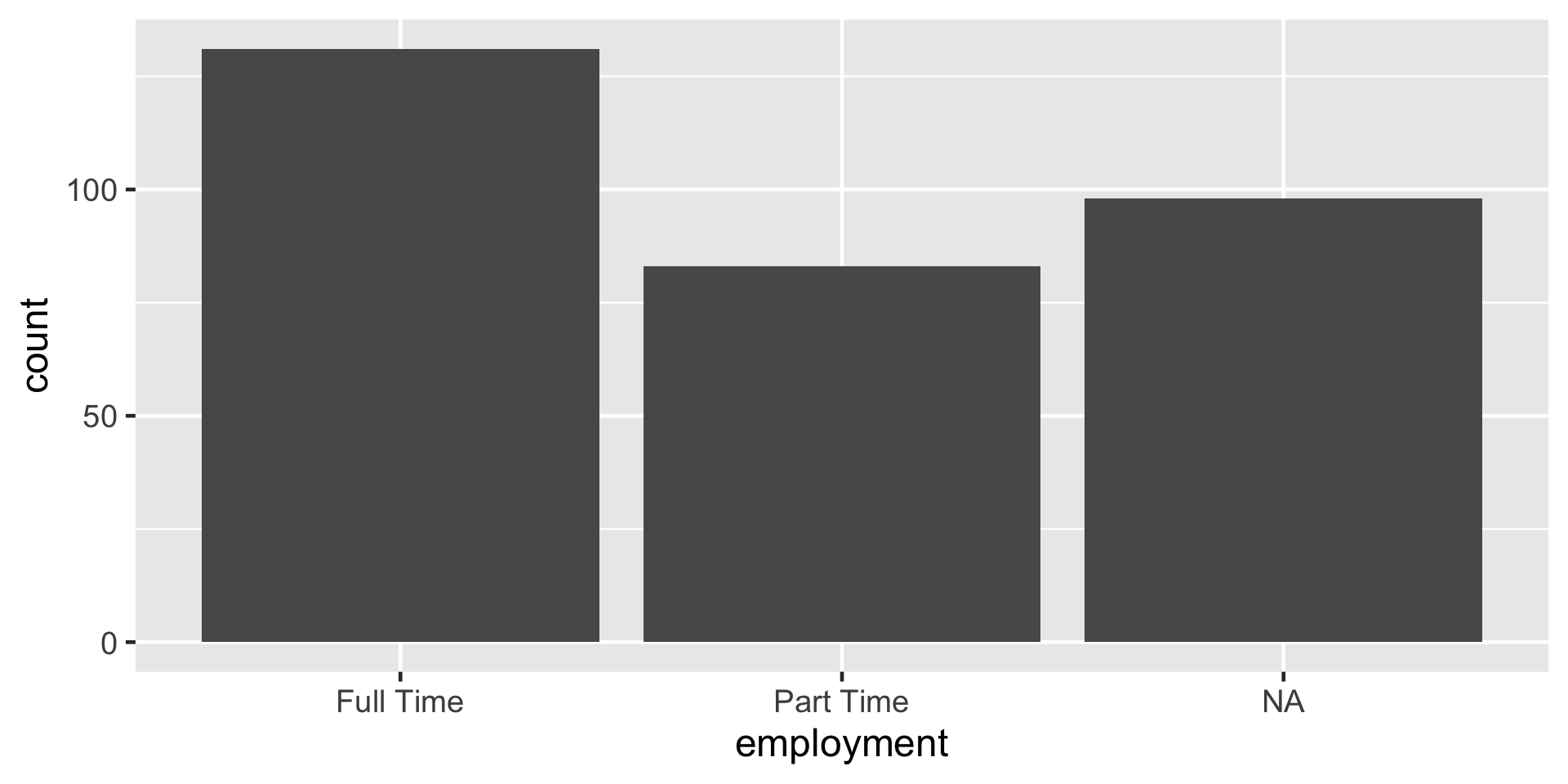
A bar plot of employment status. The x-axis is labeled 'employment status' with categories Full Time, Part Time, and NA. The y-axis is labeled 'count' and ranges from 0 to 140. Full Time has the tallest bar at about 130, Part Time is around 80, and NA is close to 100.

Figure 4: Creating the bars by adding the geometric layer of a barplot

Summary

The three main steps to make a plot are:

  1. Call the ggplot() function on the data we want to plot.
  2. Map variables to plot aesthetics using the aes() function.
  3. Add a layer to specify the plot type.

code style

The tidyverse style guide has the following convention for writing ggplot2 code.

  1. The plus sign for adding layers + always has a space before it and is followed by a new line.

  2. The new line is indented by two spaces. RStudio does this automatically for you.

code style

ggplot(data = atus_college, aes(x = employment)) +
  geom_bar()

Both the above and below code are correct styles of writing ggplot code.

ggplot(
  data = atus_college, 
  aes(x = employment)
) +
  geom_bar()

Visualizing a Numeric Variable - Histogram

ggplot(data = atus_college, aes(x = weekly_earnings)) +
  geom_histogram() 
`stat_bin()` using `bins = 30`. Pick better value `binwidth`.
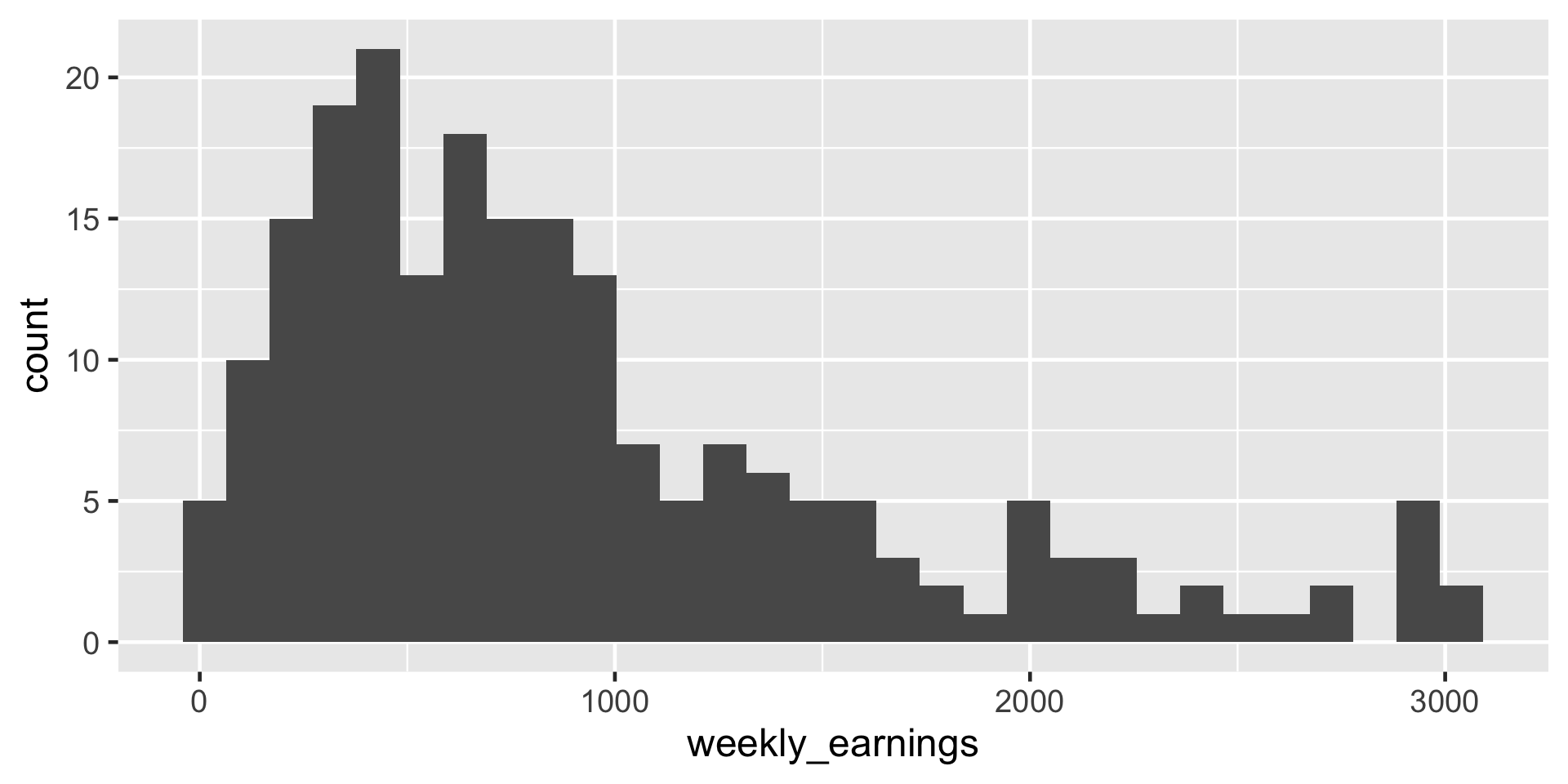
A histogram of 'weekly earnings. The x-axis is labeled 'Weekly Earnings' and ranges from 0 to 3000 in increments of 1000. The y-axis is labeled 'Count' and ranges from 0 to 20 in increments of 5. There are about 30 bars with a width of about 100. The bars height represents the frequency of weekly earnings in different ranges, with most counts concentrated at lower earnings and gradually decreasing toward higher earnings.

Figure 5: A histogram of weekly earnings

ggplot(data = atus_college, aes(x = weekly_earnings)) +
  geom_histogram(binwidth = 20) 
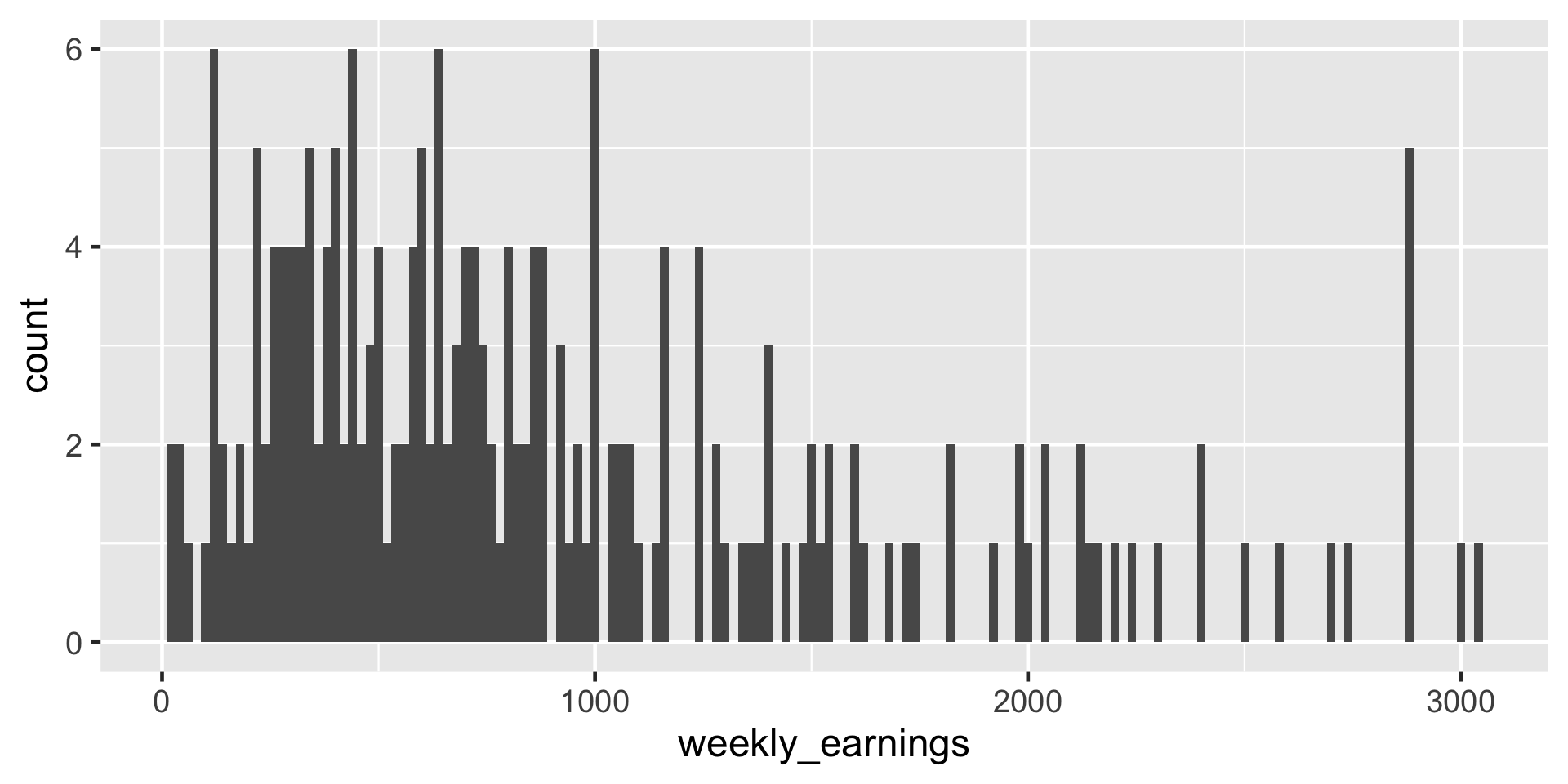
ggplot(data = atus_college, aes(x = weekly_earnings)) +
  geom_histogram(binwidth = 100) 
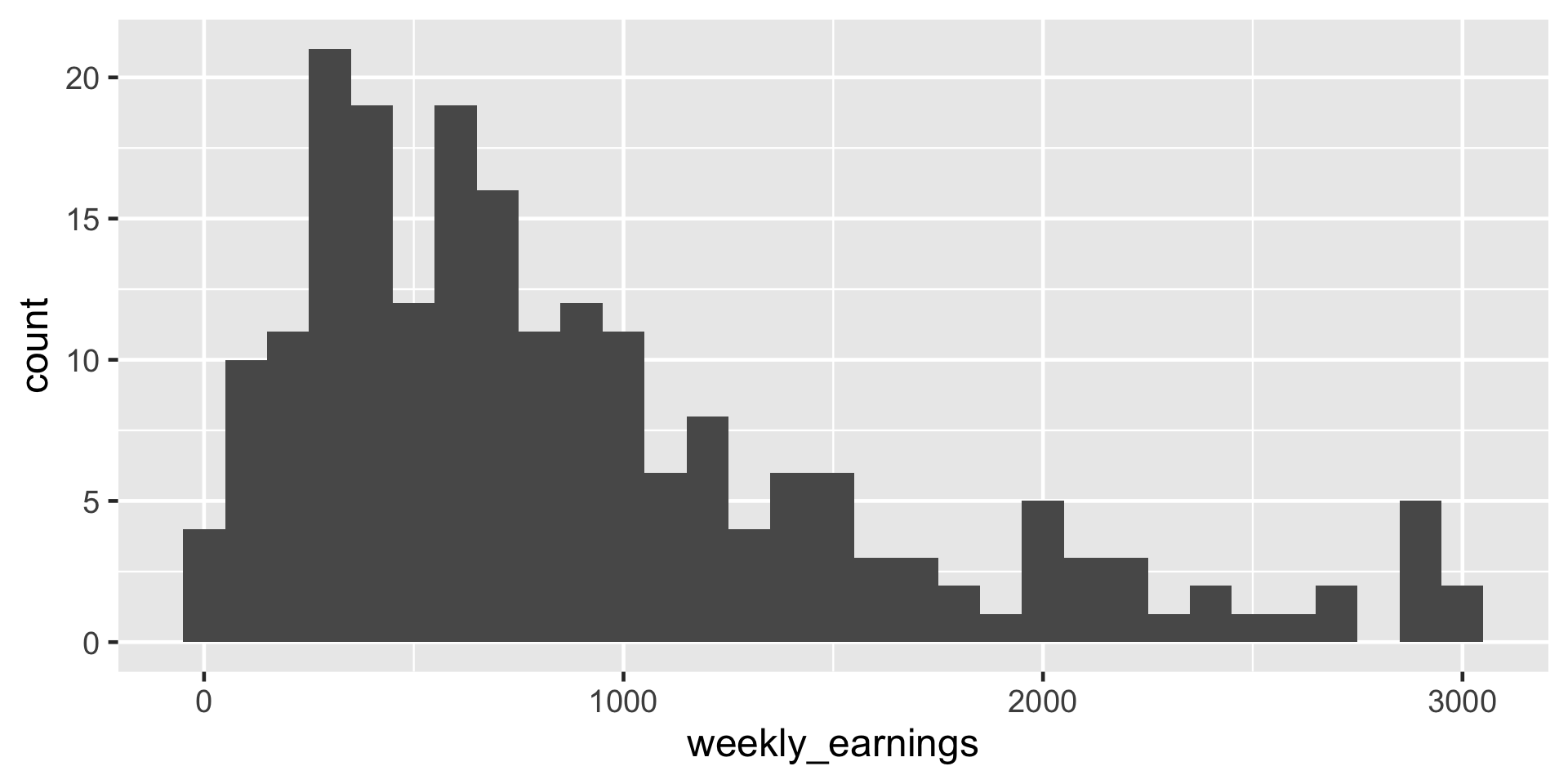
ggplot(data = atus_college, aes(x = weekly_earnings)) +
  geom_histogram(binwidth = 500) 
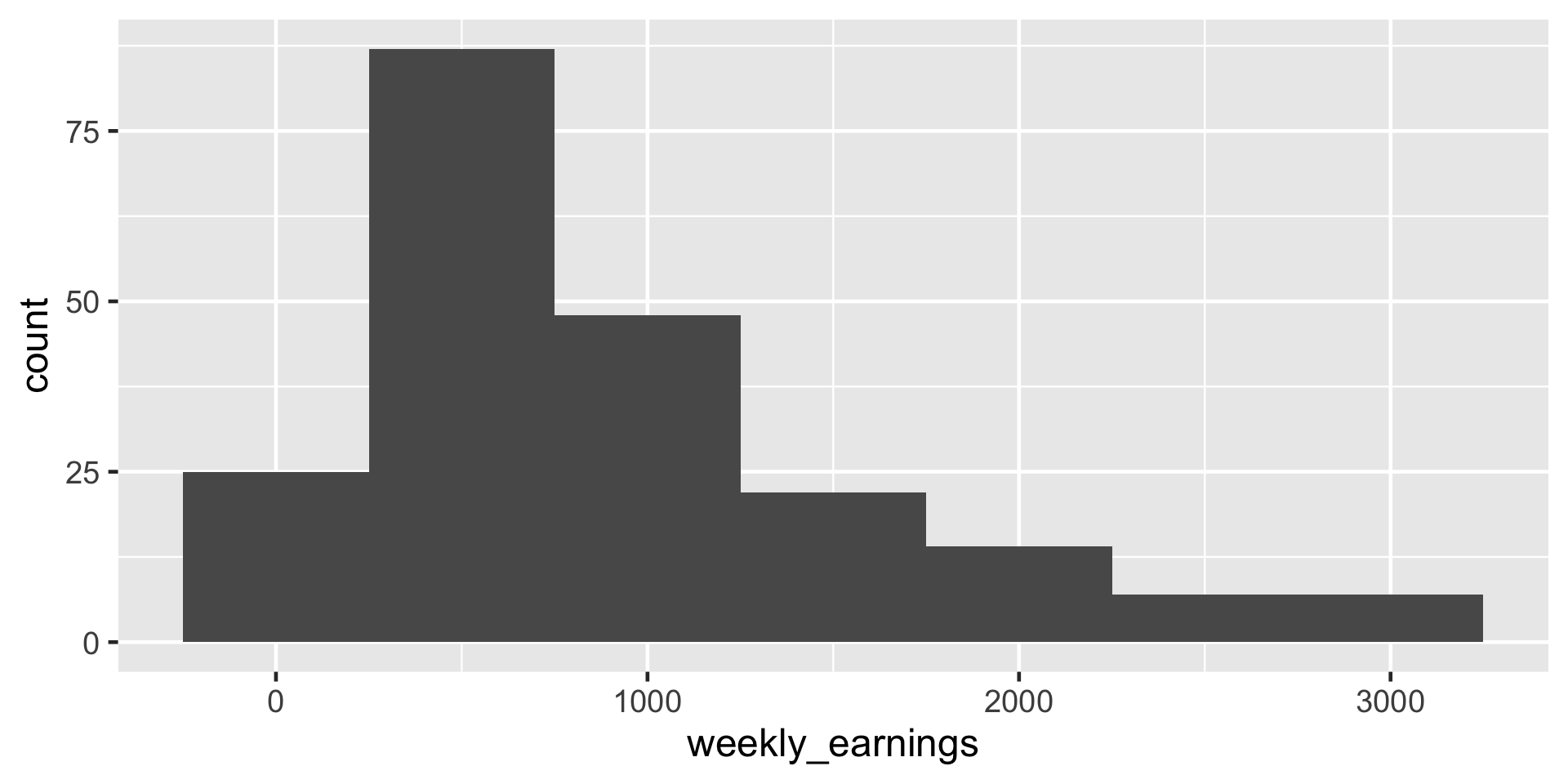
Describing histograms
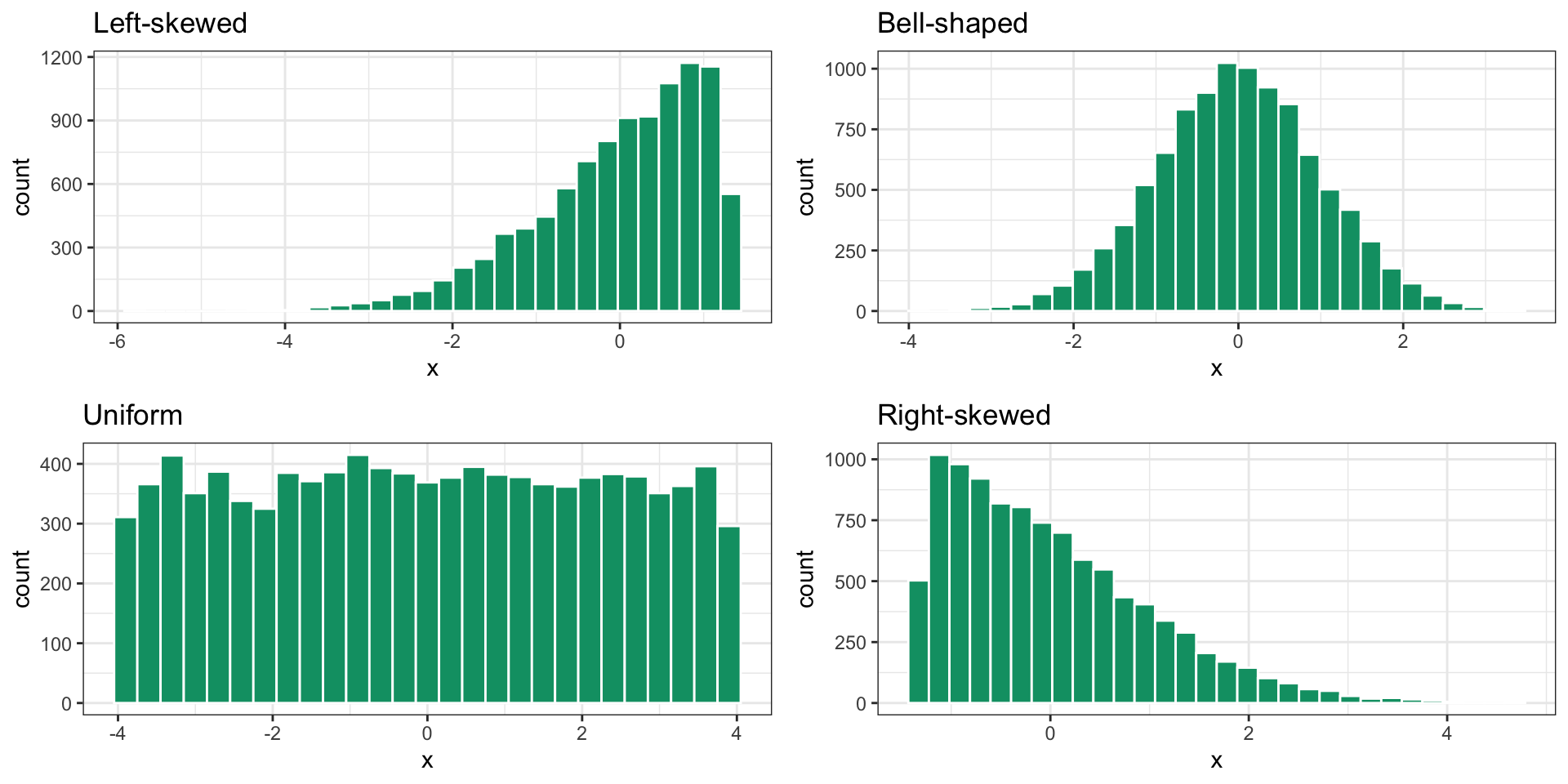
A figure showing four histograms illustrating different distribution shapes. Each histogram has the x-axis labeled x and the y-axis labeled count. The first histogram, labeled Left-skewed, with the tail on the left side is longer meaning that it has most high-count bars concentrated on the right side, and low counts towards the left. The second histogram, labeled Bell-shaped, shows a symmetric distribution with most bars centered in the middle and equal length tails on both sides. The third histogram, labeled Uniform, has bars of roughly equal height across the range.  The fourth histogram, labeled Right-skewed, with the tail on the right side is longer meaning that it has most high-count bars concentrated on the left side, and low counts towards the right.

Figure 6: Understanding skewness of a histogram

Think 💭 - Pair 👫🏽 - Share 💬

  1. The distribution of weekly_earnings is
  1. left-skewed
  2. symmetric
  3. right-skewed
  1. Looking at the distribution of the weekly_earnings which of the following can be concluded?
  1. mean > median
  2. mean = median
  3. mean < median

Visualizing a Numeric Variable - Boxplot

ggplot(data = atus_college, aes(y = weekly_earnings)) +
  geom_boxplot() 
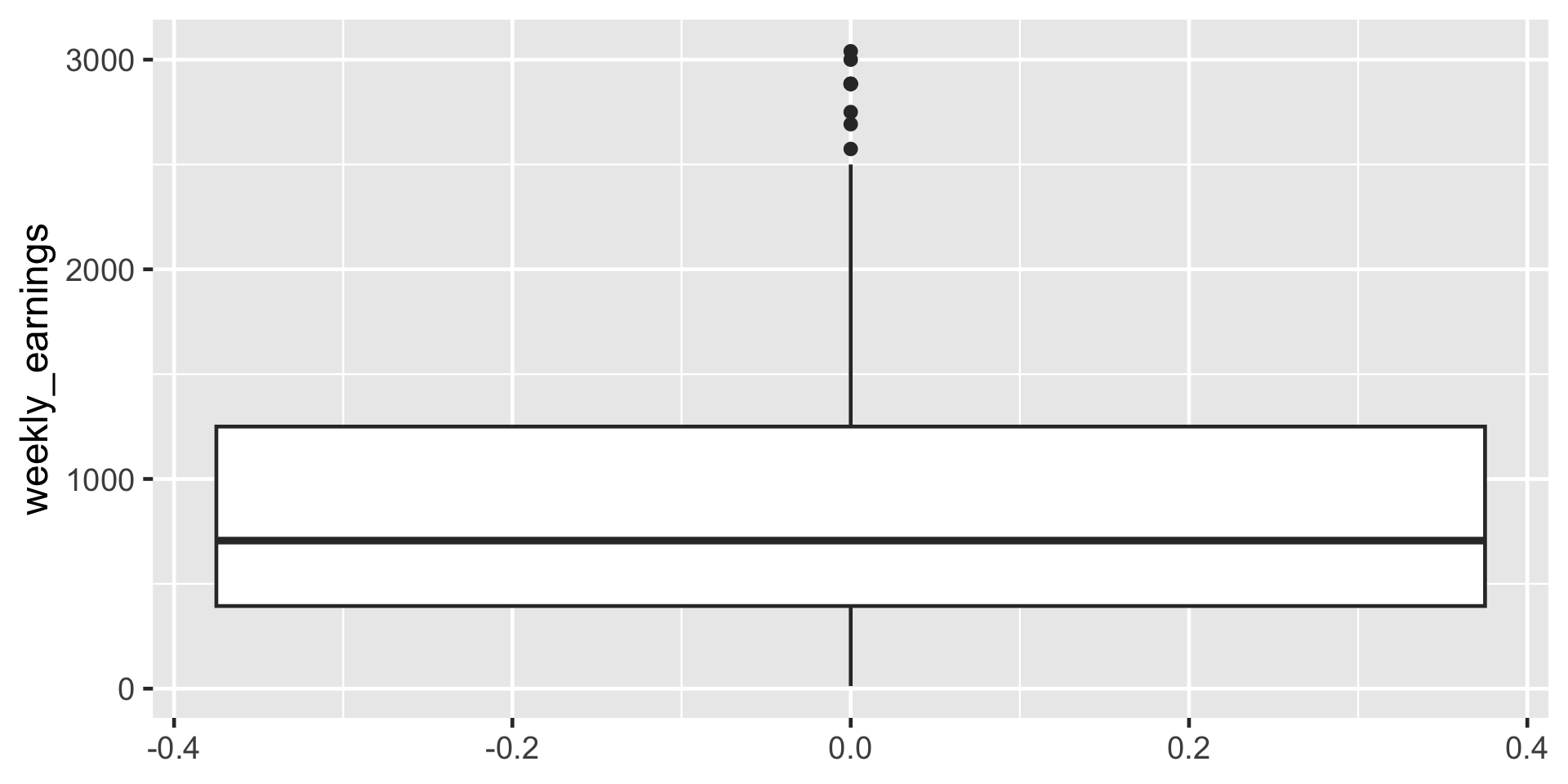
A vertical boxplot showing weekly earnings distribution. The x-axis has no label and its range from -0.4 to 0.4 has no real meaning. The y-axis is labeled weekly_earnings, ranging from 0 to 3000. The box spans approximately from 500 to 1250, with a median line near 750. The lower whisker extends from the lower end of the box down to 0, and the upper whisker extends from the upper end of the box up to about 2500. Several outliers appear above the upper whisker, ranging from about 2500 to 3000.

Figure 7: Boxplot of weekly earnings

Understanding Boxplots
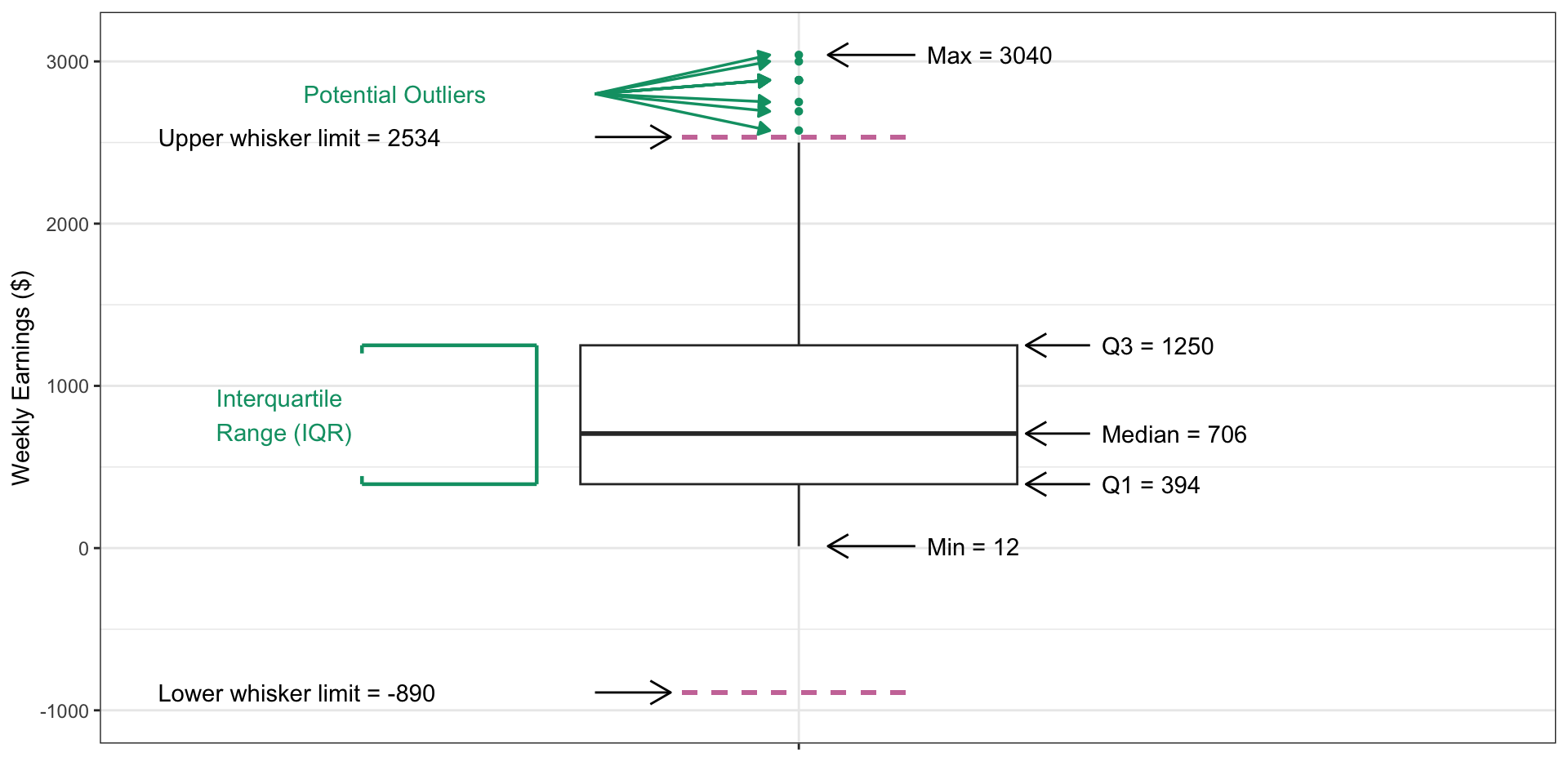
A detailed boxplot illustrating weekly earnings distribution with annotations. The y-axis is labeled 'Weekly Earnings ($)' and ranges from -1000 to 3000. The box spans from Q1 = 394 to Q3 = 1250, with a median at 706. The minimum value is 12, and the maximum is 3040. The upper whisker limit is 2534, and the lower whisker limit is -890. Several green points above the upper whisker represent potential outliers between 2534 and 3040. The interquartile range (IQR) is highlighted between Q1 and Q3. Text annotations indicate key values: Min = 12, Median = 706, Q1 = 394, Q3 = 1250, Upper whisker limit = 2534, Lower whisker limit = -890, and Max = 3040.

Figure 8: Annotated boxplot

Understanding Boxplots
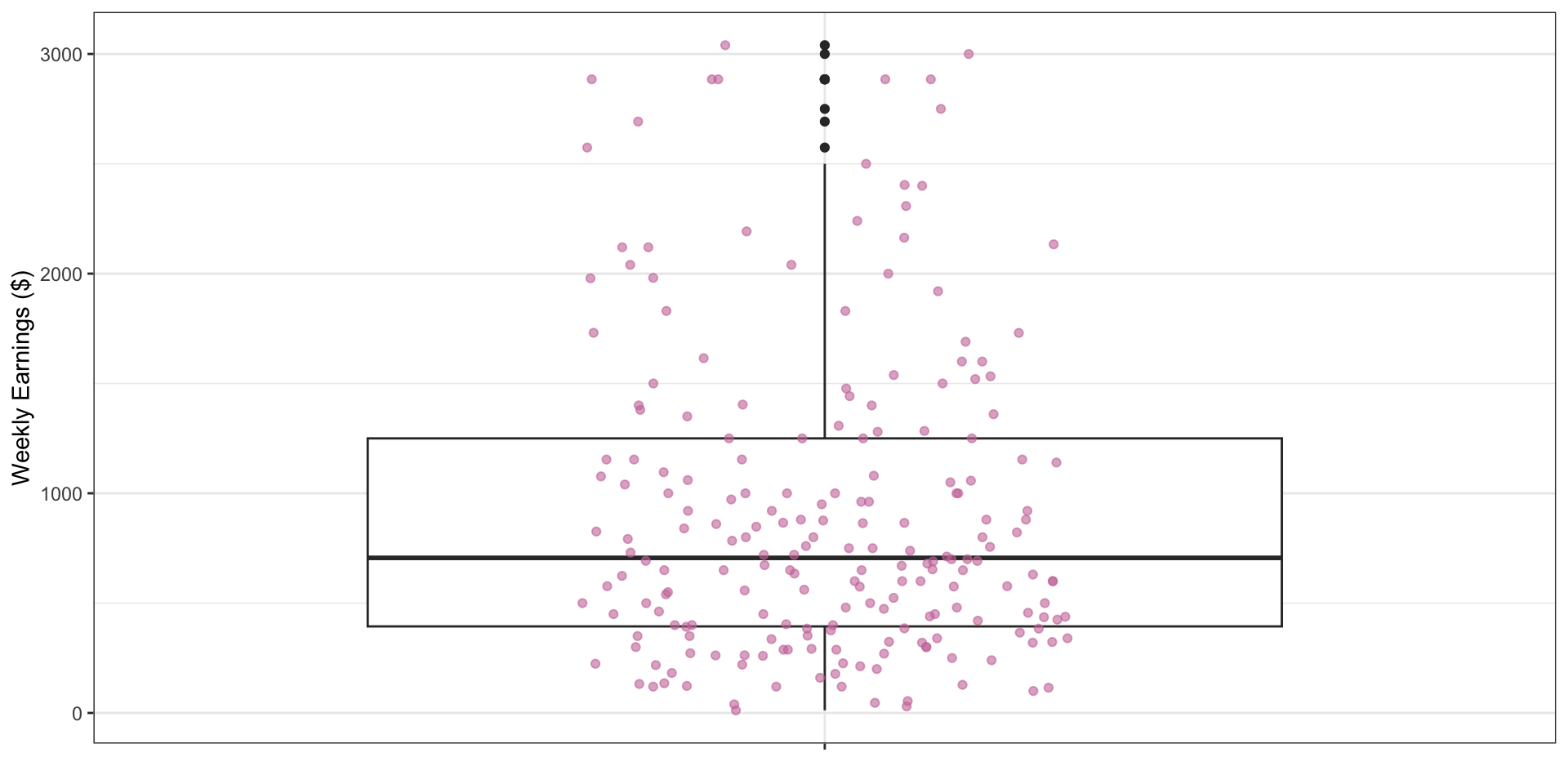
A vertical boxplot combined with jittered points showing weekly earnings distribution. The x-axis is labeled 'x' and the y-axis is labeled weekly_earnings, ranging from 0 to 3000. The box spans approximately from 500 to 1250, with a median line near 750. The lower whisker extends from the lower end of the box down to 0, and the upper whisker extends from the upper end of the box up to about 2500. Several outliers appear above the upper whisker, ranging from about 2500 to 3000. The boxplot is also overlayed with pink jittered points representing individual data values, scattered around the boxplot, with most points concentrated between 0 and 1500 and fewer points at higher earnings.

Figure 9: Boxplot overlayed with individual observation points

Visualizing Two Variables

Stacked Bar Plot

ggplot(
  data = atus_college, 
  aes(
    x = employment,
    fill = enrollment 
  )
) +
  geom_bar()
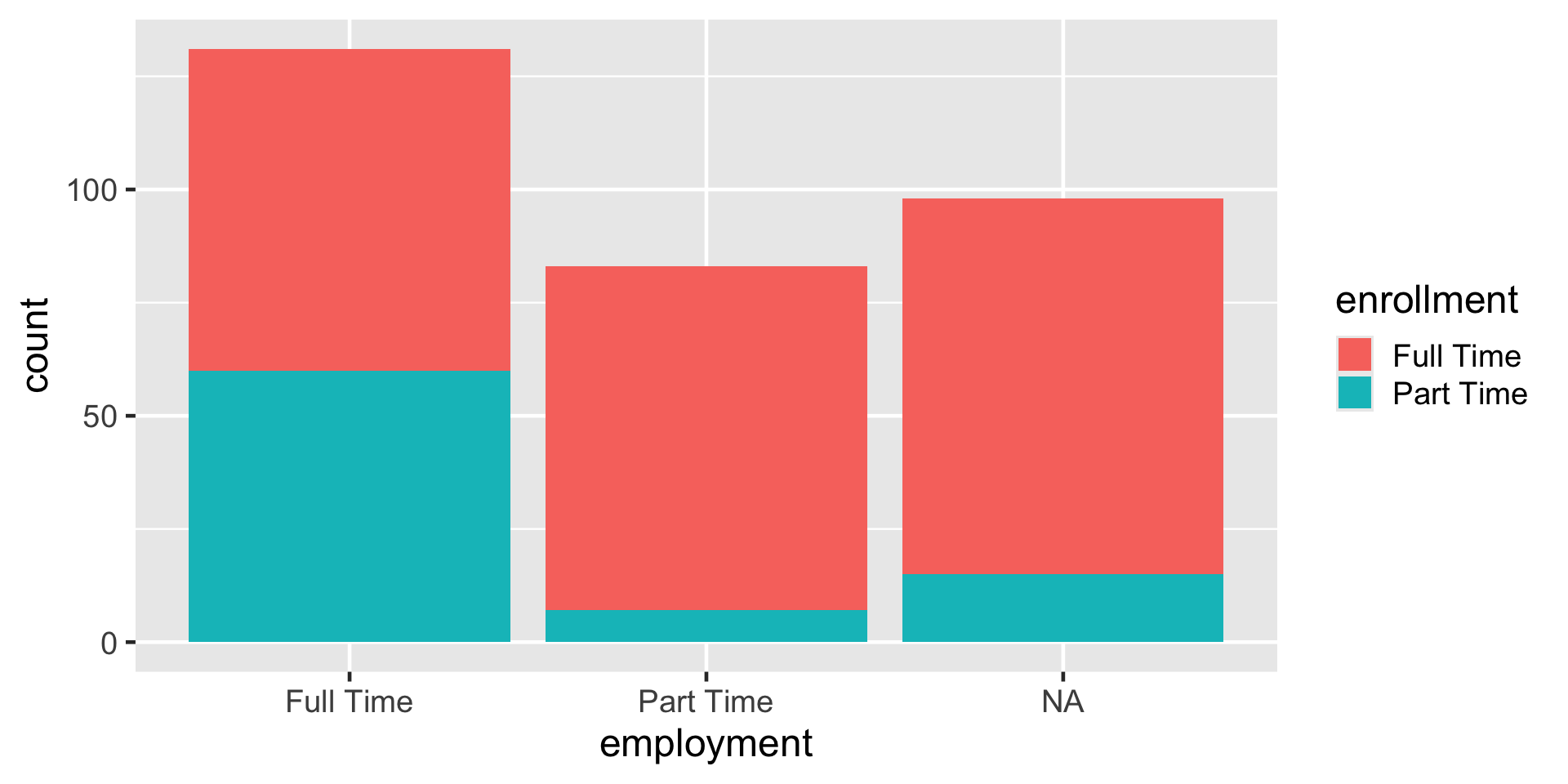
A stacked bar chart showing counts of enrollment status within employment categories. The x-axis is labeled employment with three categories: Full Time, Part Time, and NA. The y-axis is labeled 'count' and ranges from 0 to 150. Each bar is divided into two segments: red for Full Time enrollment and teal for Part Time enrollment. For Full Time employment, the total height is about 140, with roughly 60 teal and 80 red. For Part Time employment, the total is about 85, mostly red with a small teal segment near 10. For NA, the total is about 100, with a larger red segment around 80 and teal around 20. A legend on the right identifies colors for enrollment status: red for Full Time enrollment and teal for Part Time enrollment.
Figure 10: Stacked barplot of employment and enrollment status

Standardardized stacked barplot

ggplot(
  data = atus_college, 
  aes(
    x = employment,
    fill = enrollment
  )
) +
  geom_bar(position = "fill")
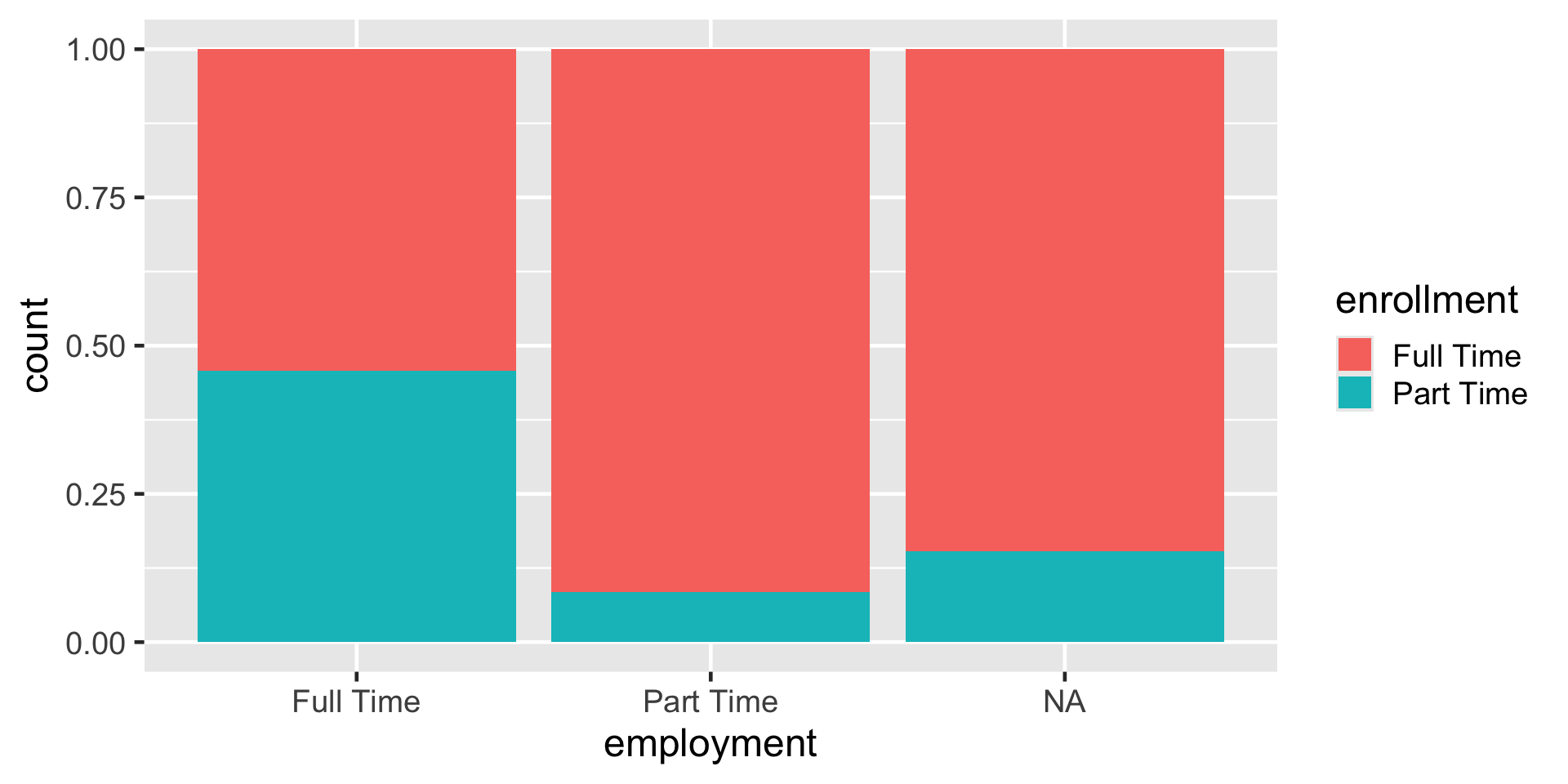
A stacked bar chart showing the proportion of enrollment status within employment categories. The x-axis is labeled 'employment' with three categories: Full Time, Part Time, and NA. The y-axis is labeled 'count' and ranges from 0 to 1, representing proportions. Each bar is divided into two segments: red for Full Time enrollment and teal for Part Time enrollment. For Full Time employment, the bar is about 45% teal and 55% red. For Part Time employment, the bar is mostly red (around 90%) with a small teal segment (about 10%). For NA, the bar is about 80% red and 20% teal. A legend on the right identifies colors for enrollment status: red for Full Time enrollment and teal for Part Time enrollment.
Figure 11: Standardardized stacked barplot of employment and enrollment

Dodged barplot

ggplot(
  data = atus_college, 
  aes(
    x = employment,
    fill = enrollment
  )
) +
  geom_bar(position = "dodge") 
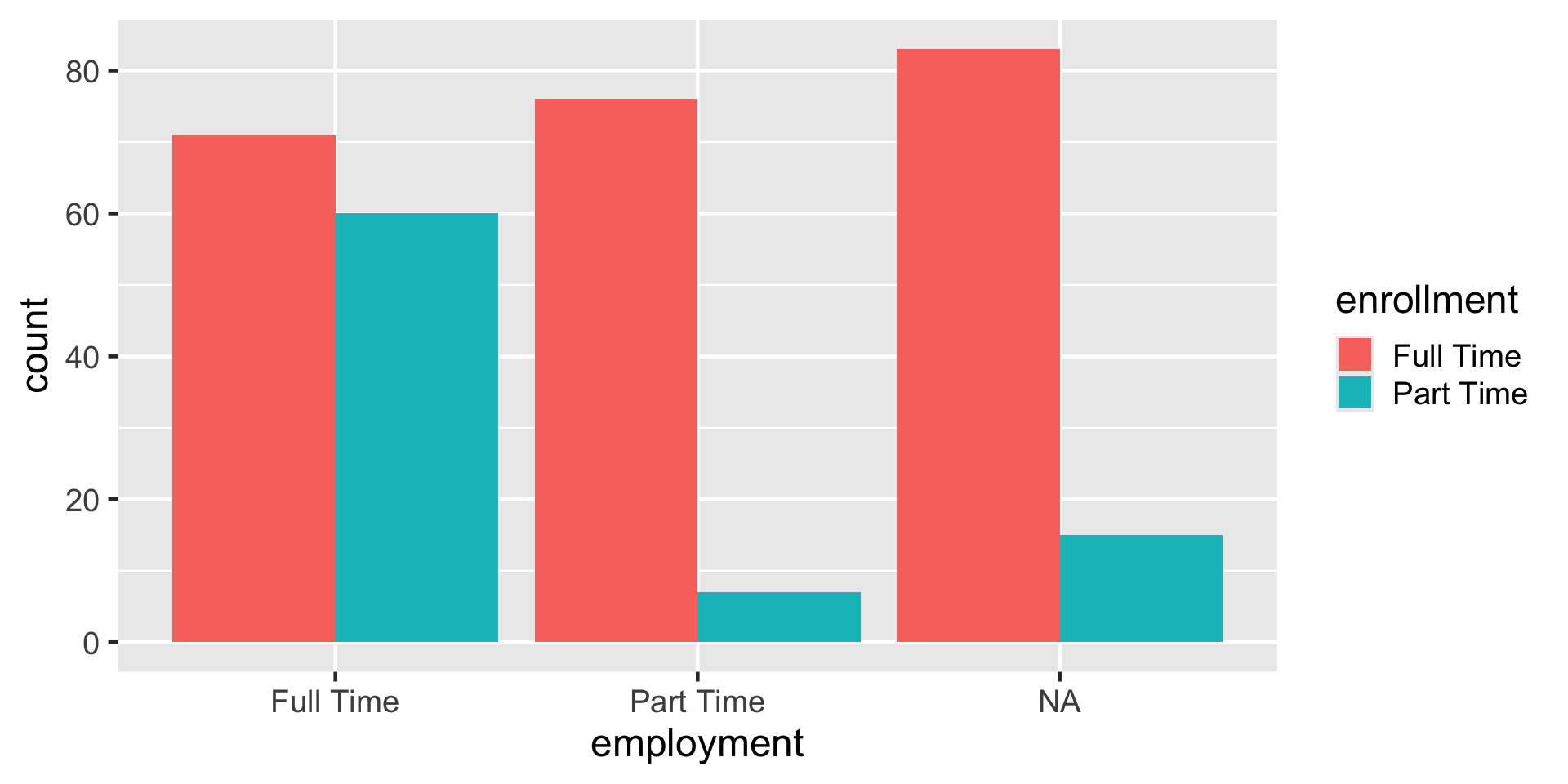
A grouped side-by-side bar plot showing counts of employment categories broken into enrollment status. The x-axis is labeled 'employment' with three categories: Full Time, Part Time, and NA. The y-axis is labeled 'count' and ranges from 0 to 90. Each emplyment category has two bars: red for Full Time enrollment and teal for Part Time enrollment. For Full Time employment, the red bar is about 70 and the teal bar about 60. For Part Time employment, the red bar is about 75 and the teal bar about 10. For NA, the red bar is about 85 and the teal bar about 15. A legend on the right identifies colors for enrollment status: red for Full Time enrollment and teal for Part Time enrollment.
Figure 12: Side-by-side (dodge) barplot of employment and enrollment status

Scatterplot

ggplot(
  data = atus_college,
  aes(
    x = time_alone, 
    y = weekly_earnings
  )
) +
  geom_point() 
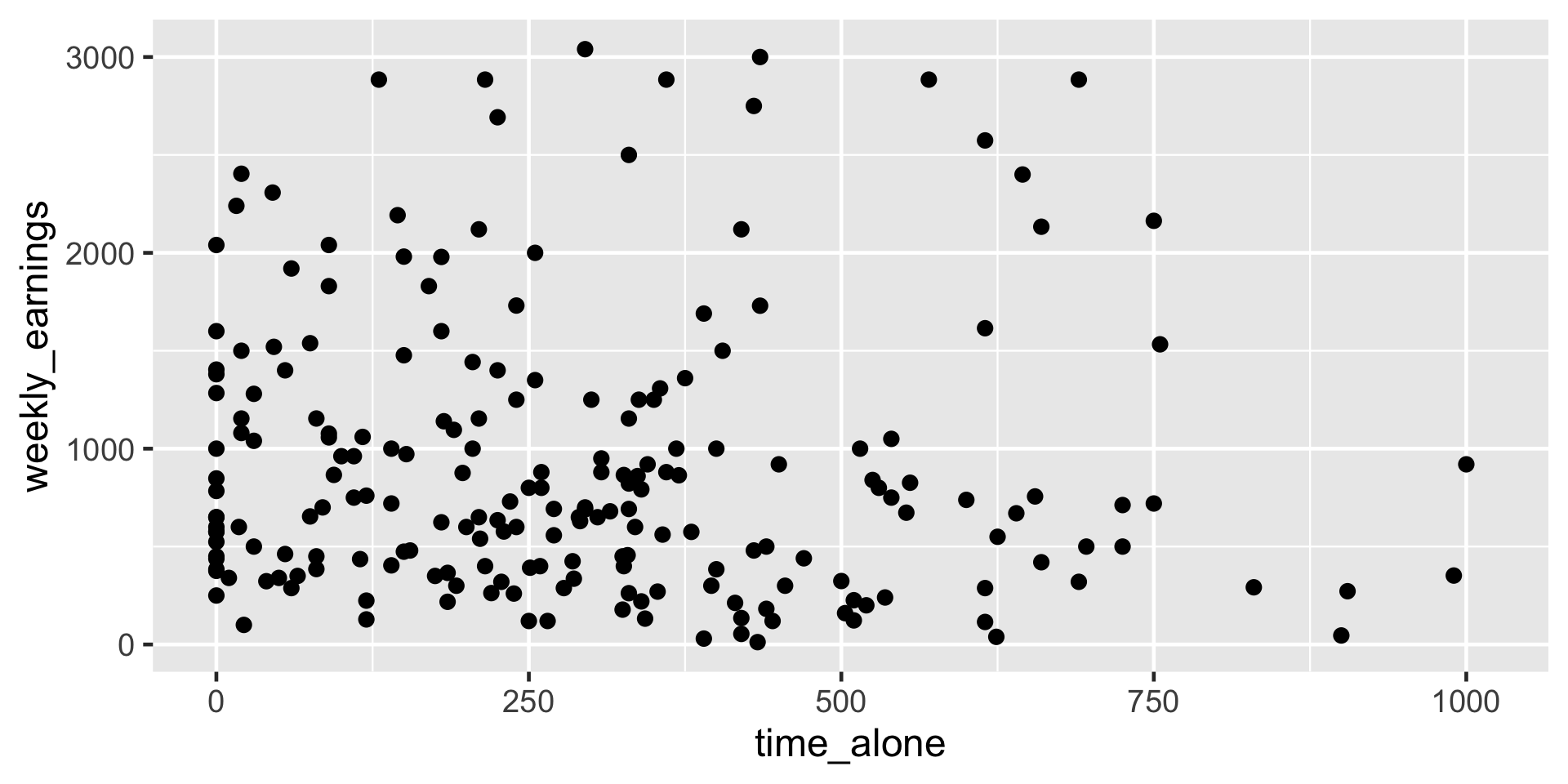
A scatterplot showing the relationship between time alone and weekly earnings. The x-axis is labeled time_alone and ranges from 0 to 1000. The y-axis is labeled weekly_earnings and ranges from 0 to 3000. Each point represents an observation. Most points are concentrated in the lower left quadrant, with time alone between 0 and 500 and weekly earnings below 1500. A few points extend toward higher earnings up to 3000 and higher time alone values up to 1000, but they are sparse. The overall pattern suggests no strong linear relationship, with data widely scattered.
Figure 13: Scatterplot of time spent alone and weekly earnings

Side-by-side Boxplot

ggplot(
  data = atus_college, 
  aes(
    x = employment,
    y = weekly_earnings
  )
) +
  geom_boxplot()
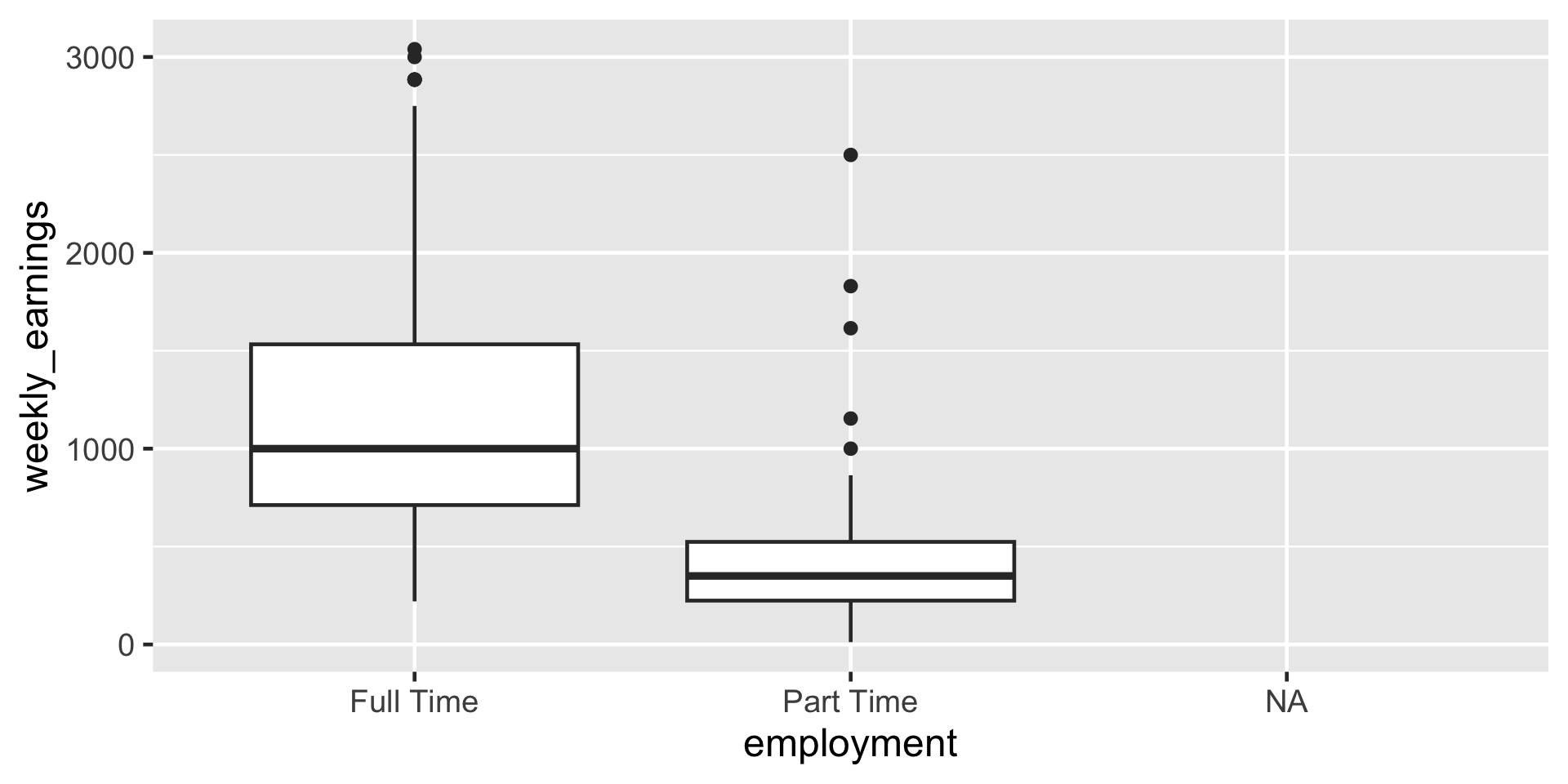
A side-by-side boxplot comparing weekly earnings across employment categories. The x-axis is labeled employment with three categories: Full Time, Part Time, and NA. The y-axis is labeled weekly_earnings and ranges from 0 to 3000. The Full Time boxplot shows a median near 1000, an interquartile range roughly from 750 to 1500, whiskers extending from the box down to about 25 and up to about 2500, and some outliers above 2500 up to 3000. The Part Time boxplot has a median around 400, an interquartile range from about 250 to 500, whiskers extending from the box down to 0 and up to about 1000, and a few outliers above 1000. The NA category has no visible box or data points
Figure 14: Side-by-side boxplots based on employment status

Visualizing More Than Two Variables

Use of color

ggplot(
  data = atus_college,
  aes(
    x = time_alone,
    y = weekly_earnings,
    color = employment 
  )
) +
  geom_point()
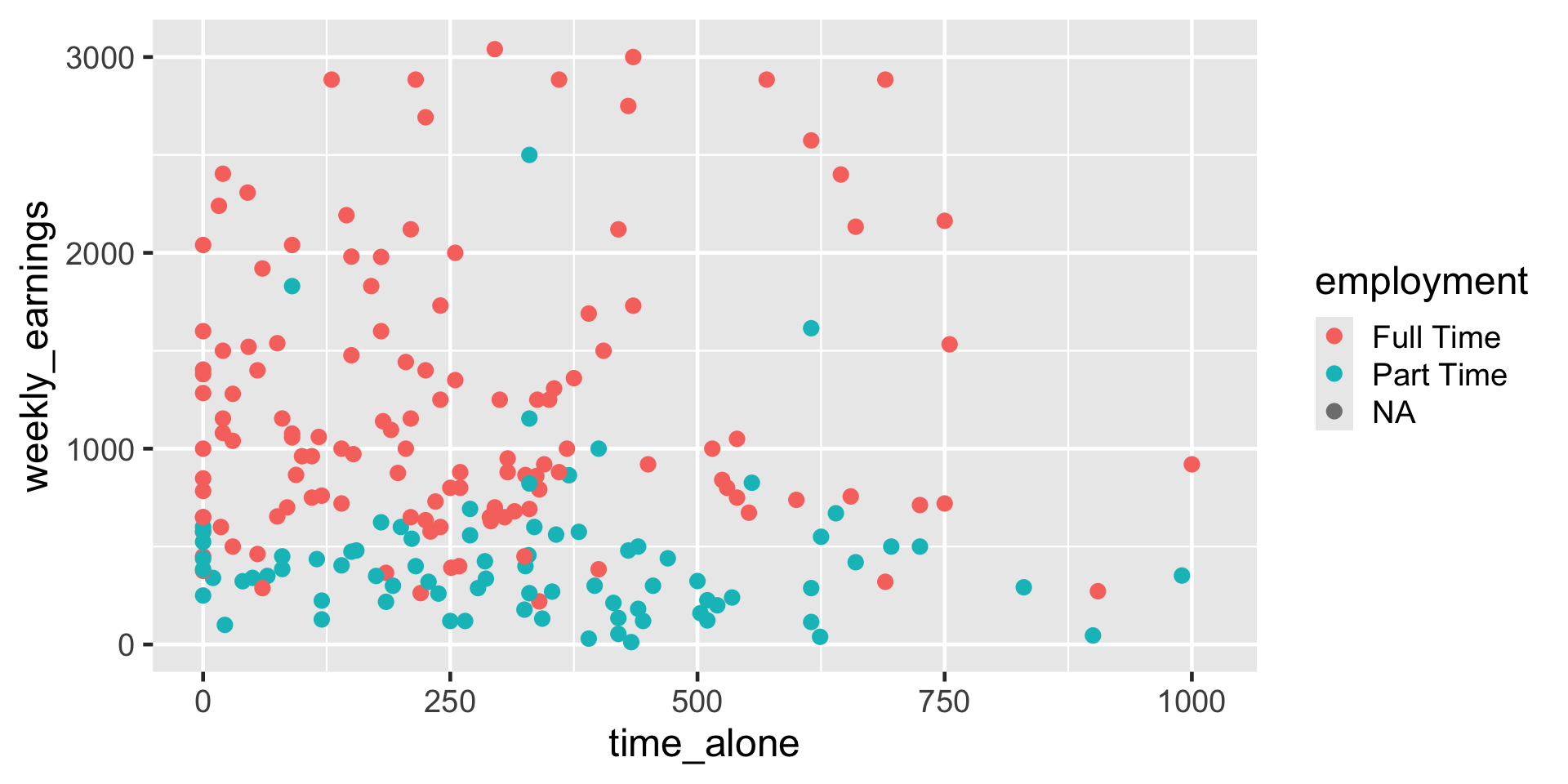
A scatterplot showing the relationship between time alone and weekly earnings, with points colored by employment category. The x-axis is labeled time_alone and ranges from 0 to 1000. The y-axis is labeled weekly_earnings and ranges from 0 to 3000. Each point represents an observation, with red for Full Time, teal for Part Time, and gray for NA. Most points are concentrated in the lower left quadrant, where time alone is below 500 and weekly earnings are below 1500. Full Time points (red) dominate across the range, including higher earnings up to 3000. Part Time points (teal) cluster mostly at lower earnings below 1000. NA points (gray) are sparse. A legend on the right identifies colors for employment categories: red for Full Time, teal for Part Time, and gray for NA.
Figure 15: Grouping points by color based on employment status

If you are color-blind, depending on the type, you may possibly not be able to distinguish these colors so the next slide will make much more sense.

Use of shape

ggplot(
  data = atus_college,
  aes(
    x = time_alone,
    y = weekly_earnings,
    shape = employment
  ) 
) +
  geom_point()
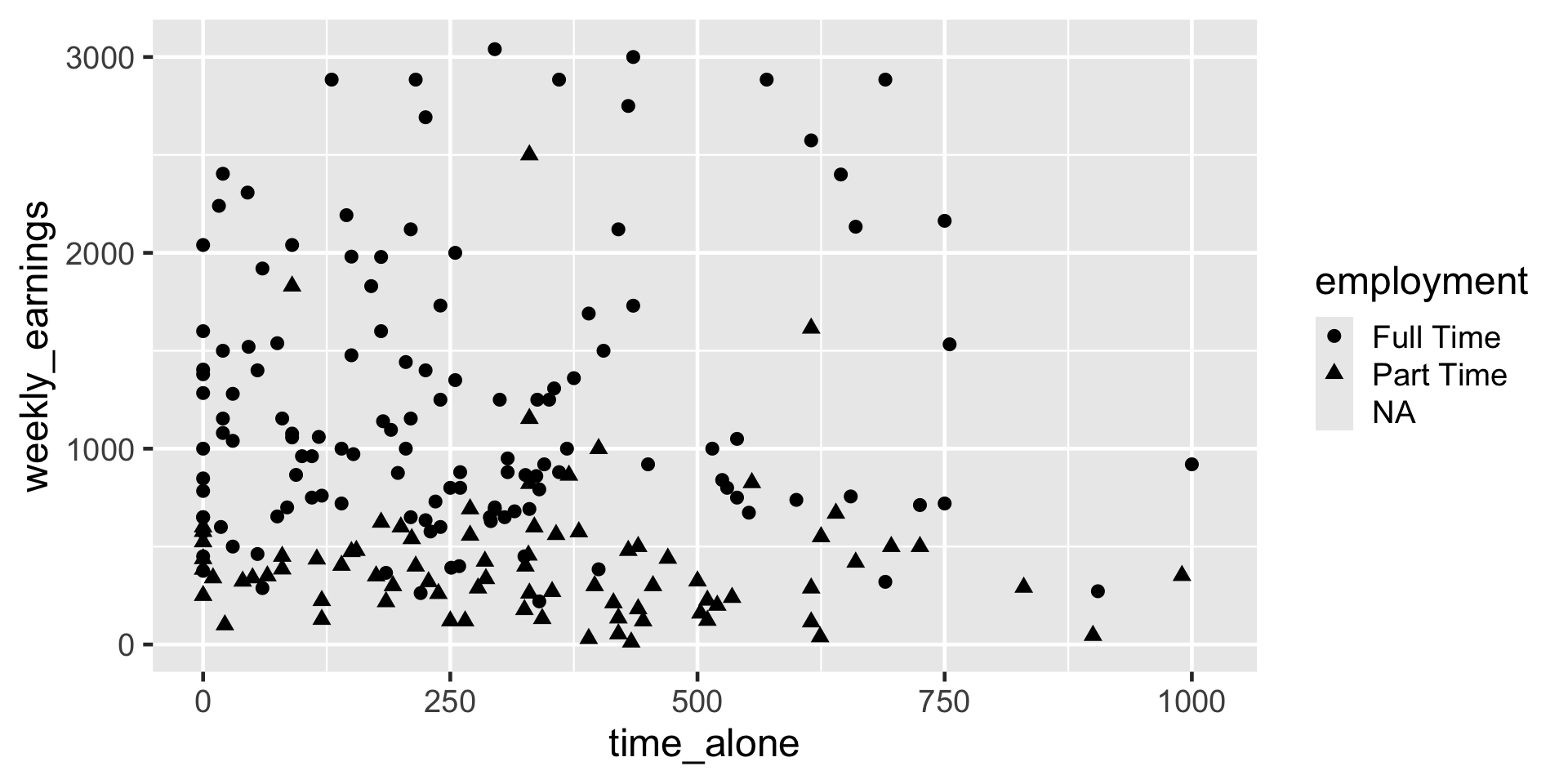
A scatterplot showing the relationship between time alone and weekly earnings, with point shapes indicating employment category. The x-axis is labeled time_alone and ranges from 0 to 1000. The y-axis is labeled weekly_earnings and ranges from 0 to 3000. Each point represents an observation: circles for Full Time, triangles for Part Time, and no shape for NA because there are no points with income and NA status for employment. Most points cluster in the lower left quadrant, where time alone is below 500 and weekly earnings are below 1500. Full Time points (circles) are spread across the range, including higher earnings up to 3000. Part Time points (triangles) are concentrated at lower earnings below 1000. There are no NA points. A legend on the right identifies shapes for employment categories: circles for Full Time, triangles for Part Time, and no shapte for NA.
Figure 16: Grouping points by shape based on employment status

Use of color and shape

ggplot(
  data = atus_college,
  aes(
    x = time_alone,
    y = weekly_earnings,
    color = employment,
    shape = employment
  )
) +
  geom_point()
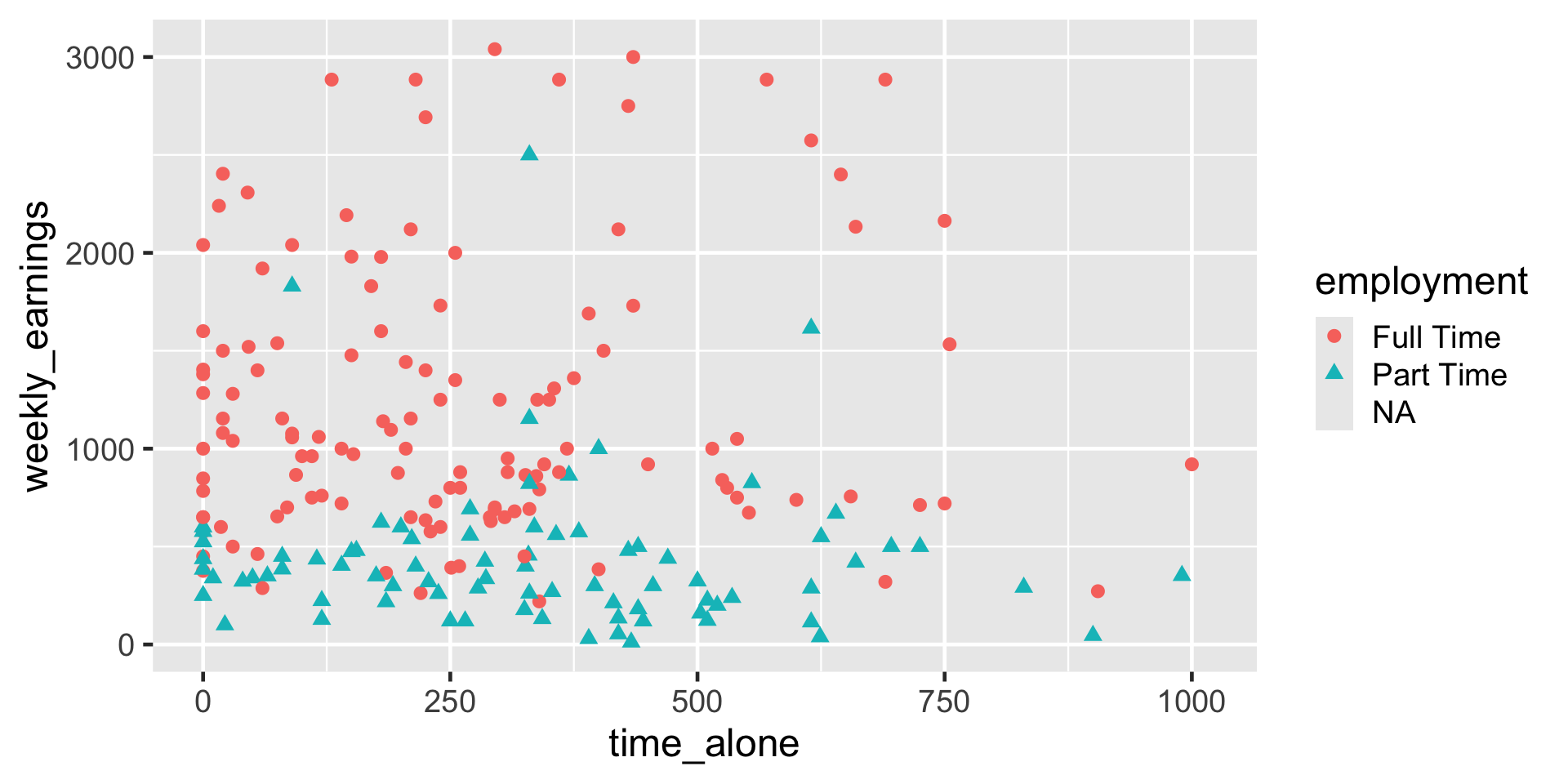
A scatterplot showing the relationship between time alone and weekly earnings, with point shapes indicating employment category. The x-axis is labeled time_alone and ranges from 0 to 1000. The y-axis is labeled weekly_earnings and ranges from 0 to 3000. Each point represents an observation: red circles for Full Time, teal triangles for Part Time, and no shape or color for NA because there are no points with income and NA status for employment. Most points cluster in the lower left quadrant, where time alone is below 500 and weekly earnings are below 1500. Full Time points (red circles) are spread across the range, including higher earnings up to 3000. Part Time points (teal triangles) are concentrated at lower earnings below 1000. There are no NA points. A legend on the right identifies shapes for employment categories: red circles for Full Time, teal triangles for Part Time, and no shapte or color for NA.
Figure 17: Using both color and shape to group points

Use of size

ggplot(
  data = atus_college,
  aes(
    x = time_alone,
    y = weekly_earnings,
    color = employment,
    size = work_time
  ) 
) +
  geom_point()
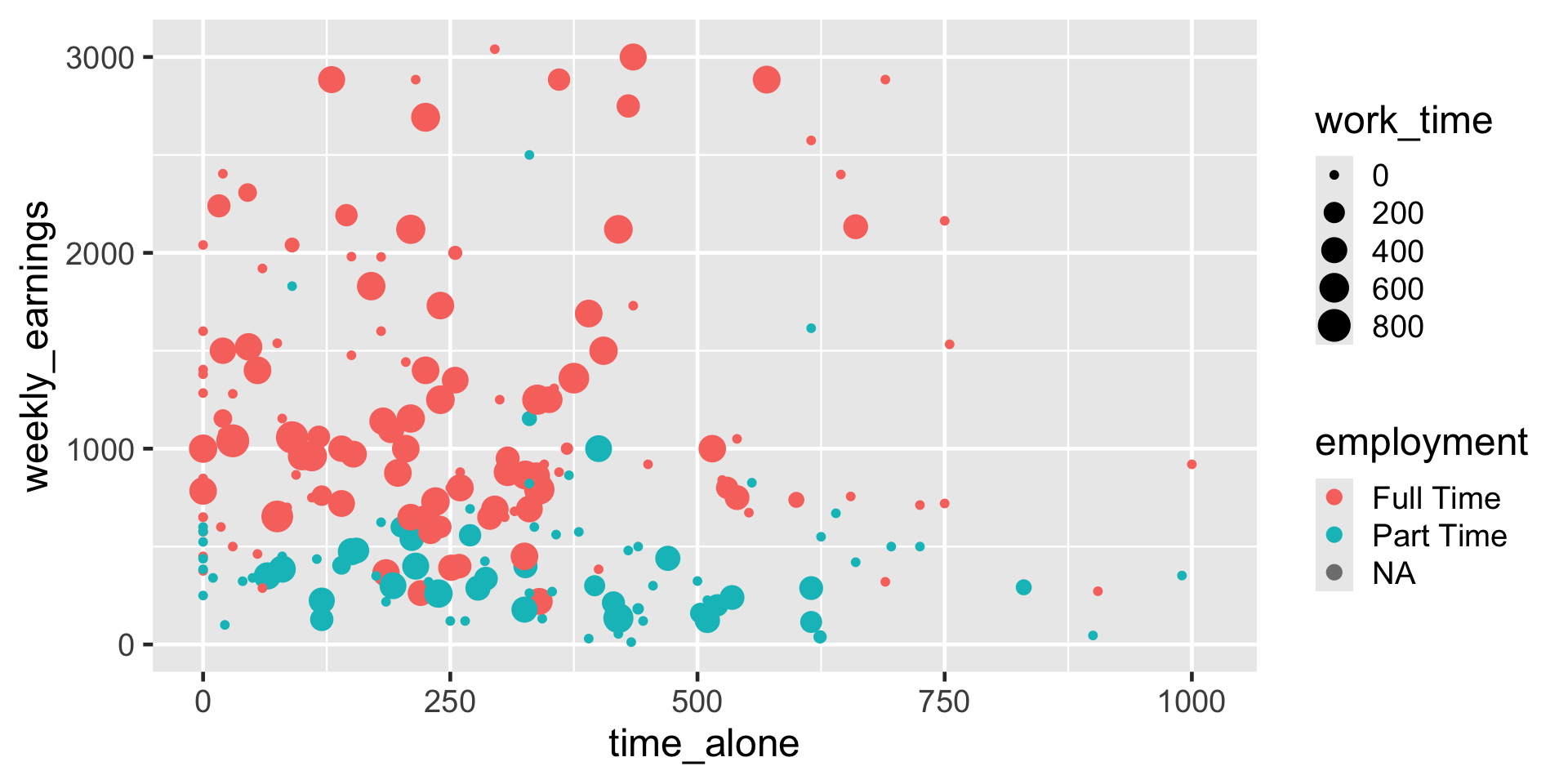
A scatterplot showing the relationship between time alone and weekly earnings, with points varying in color and size to represent employment category and work time. The x-axis is labeled time_alone and ranges from 0 to 1000. The y-axis is labeled weekly_earnings and ranges from 0 to 3000. Each point represents an observation: red circles for Full Time, teal circles for Part Time, and gray circles for NA. Point size indicates work time, with larger circles representing more work time (up to 800) and smaller circles representing less. Most points cluster in the lower left quadrant, where time alone is below 500 and weekly earnings are below 1500. Full Time points (red) dominate across the range, including higher earnings up to 3000, while Part Time points (teal) are concentrated at lower earnings below 1000. A legend on the right shows color for employment and size scale for work time.
Figure 18: Adding a numerical variable to differentiate points based on size

Practice

Using the penguins data frame ask a question that you are interested in answering. Visualize data to get a visual answer to the question. What is the visual telling you? Note all of this down in your lecture notes.

Learning Tip of the Day

Why does peer instruction benefit student learning?